Since its mass adoption, AI has become, and still is, a popular and sometimes contraversial topic. Some of it is hype, some is substance. Some is good, some, of course, is bad. We want to give you the good, not the bad, and ignore the hype.
AI has a ton of opportunity, but also risk. So we put you in control by making it off by default and giving you choice of models you want to use.
Frank Karlitschek
CEO and Founder of Nextcloud
In Nextcloud Hub we’ve focused on providing you the best tools that AI has to offer. Benefits like improving your work productivity and jump starting creativity, AI features can enhance your Nextcloud experience.
To fit everyone’s needs, we offer several types of integrations for AI, from completely self-hosted options to integrations with external services like Open AI.
All the AI features are available via Nextcloud Assistant, our AI assistant integrated in many apps and available in its own interface as a chat, right from your top toolbar. Of course, only if you have AI features enabled.
If you’re interested in setting up Nextcloud’s AI features and Nextcloud Assistant on your instance, keep reading this article for a breakdown of how to enable and use each one!
Self-hosted AI VS integrations from external services
First, let’s understand the difference between self-hosted AI features versus integrations from external services.
All self-hosted AI features are built-in and only run on YOUR server, meaning no data leaves your premises and you’re in full control. Our self-hosted options can be installed from the Nextcloud App Store. Some are built-in and some require some command line commands to be run to download Ai models.
We also offer AI features using remote AI services from companies like DeepL and OpenAI (ChatGPT and DALL·E). These features can be enabled on your server but data from the app is sent to the third party. Note that nothing is ever sent to external services by default unless you explicitly enable those features or install the related apps. However, if you like these services, then they are available to you!
Nextcloud Ethical AI Rating
Our Ethical AI Rating shows you the risks you take with your data when using a feature and gives you a quick insight into the ethical implications of your choice.
For every model you can use for different AI features in Nextcloud, a rating is established:
Green 🟢
All conditions are met
Yellow 🟡
2 conditions are met
Orange 🟠
Only 1 condition is met
Red 🔴
No conditions are met
Now, let’s learn about Nextcloud’s AI features, the rating for each available model, and how to enable and use them in Nextcloud Hub.
LocalAI: run your AI tools locally on your server
LocalAI is an open source API that allows you to set up and use many AI features to run locally on your server. However instead of connecting to the OpenAI API for these, you can also connect to a self-hosted LocalAI instance with the Nextcloud LocalAI integration app.
The AI features LocalAI supports:
- Image generation
- Text generation
- Speech-to-text dictation
Image generation
Your cloud is full of photos, but sometimes the image you need isn’t there. Maybe it is somewhere on the web, or maybe you can only visualize it in your head? With AI image generation, you can type in keywords to create the image you’re imagining.
Your instant AI generated image can be inserted into a Talk chat, Notes and much more. Image generation is also available as a quick command from the file creation menu.
Available options for image generation:
- OpenAI and LocalAI integration (via LocalAI) 🟢
- Local Stable Diffusion 2 (ExApp) 🟡
- Replicate integration 🟡
- OpenAI and LocalAI integration (via Ollama) 🟡
- OpenAI and LocalAI integration (via IONOS AI Model Hub) 🟠
- OpenAI and LocalAI integration (via Plusserver) 🟠
- OpenAI and LocalAI integration (via Groqcloud) 🟠
- OpenAI and LocalAI integration (via MistralAI) 🟠
- OpenAI and LocalAI integration (via OpenAI API) 🔴
This feature is very versatile on Nextcloud, being able to insert an AI generated image in a document, Talk chat and more. To use this feature in your Nextcloud, open up the Smart Picker by typing a slash (/) in your document, Nextcloud Talk chat and other apps!
Text generation (LLM)
How do you craft intelligent, professional text? With the text generating tool in Nextcloud Talk, Office and Mail.
Text generation is involved in a range of Nextcloud Assistant features:
- Text processing tasks in Nextcloud Assistant
- Nextcloud Assistant chat features
- Text assistance features in Nextcloud Text
- Summaries of email threads in Nextcloud Mail
- Summary Bot for summarizing chat histories in Nextcloud Talk
- Summaries of chat history in Nextcloud Talk
Available options for text generation (LLM):
- Local Large Language Model 2 (ExApp) 🟢
- OpenAI and LocalAI integration (via LocalAI) 🟡
- OpenAI and LocalAI integration (via Ollama) 🟡
- OpenAI and LocalAI integration (via IONOS AI Model Hub) 🟠
- OpenAI and LocalAI integration (via Plusserver) 🟠
- OpenAI and LocalAI integration (via Groqcloud) 🟠
- OpenAI and LocalAI integration (via MistralAI) 🟠
- IBM watsonx.ai integration (via IBM watsonx.ai as a Service) 🟠
- IBM watsonx.ai integration (via IBM watsonx.ai software) 🟠
- OpenAI and LocalAI integration (via OpenAI API) 🔴
Context tools
Context-aware AI tools in Nextcloud Assistant use the data from various Nextcloud apps to provide relevant help and perform tasks for you. While chat features In Nextcloud Assistant are powered by an LMM, the backend for context-aware features rely on additional components.
Context Chat
Context Chat features in Nextcloud Assistant let it access your data and answer questions about your documentation, contracts, papers, reports or anything else. You can manually define the scope and even limit it to a specific folder or file for more precision. You can also search files in Nextcloud using Context Chat search by using chat.
AI agent features
AI agent features make Nextcloud Assistant perform actions in other apps when you ask it to using Context Chat. For example, you can ask it to create a calendar event, send a chat message in Nextcloud Talk, or check the weather for you.
Speech-to-text conversion
Converting speech to text can let you do a variety of tasks that make everyday work easier, from transcribing calls and creating transcriptions for various audio files to text dictation. Find below models Nextcloud Assistant support for speech-to-text conversion and their rating.
Available options for speech-to-text conversion:
- OpenAI and LocalAI integration (via LocalAI) 🟢
- Local Whisper Speech-To-Text 2 (ExApp) 🟡
- OpenAI and LocalAI integration 🟡
- OpenAI and LocalAI integration (via Ollama) 🟡
- Replicate integration 🟡
- OpenAI and LocalAI integration (via IONOS AI Model Hub) 🟠
- OpenAI and LocalAI integration (via Plusserver) 🟠
- OpenAI and LocalAI integration (via Groqcloud) 🟠
- OpenAI and LocalAI integration (via MistralAI) 🟠
The on-premises version can be enabled with the OpenAI app. In your Nextcloud settings, configure the OpenAI integration app to use your self-hosted Local AI instance.
Speech to text: dictation
Sometimes, it’s easier to say something out loud. With Nextcloud’s speech-to-text dictation feature, you can formulate text through your voice. Use your spoken words to send a message in a Nextcloud Talk chat, in an email and through many more applications.
Speech-to-text: transcription
In the speech-to-text transcription feature, your call recordings can be automatically transcribed. This smart feature is great for recording what was said during important meetings for your record keeping.
If the OpenAI integration is installed and configured (using either OpenAI or LocalAI), Nextcloud Talk will be able to automatically produce speech-to-text transcriptions of call recordings. You will receive a transcription file just like the video recording file right after the recorded call ends.
Text-to-speech conversion
All of Nextcloud Assistant features are accessible through voice input, and it can reply to your requests with voice. To enable audio chat functionality, it used text-to-speech features.
Available options for speech-to-text conversion:
Smart Inbox in Nextcloud Mail
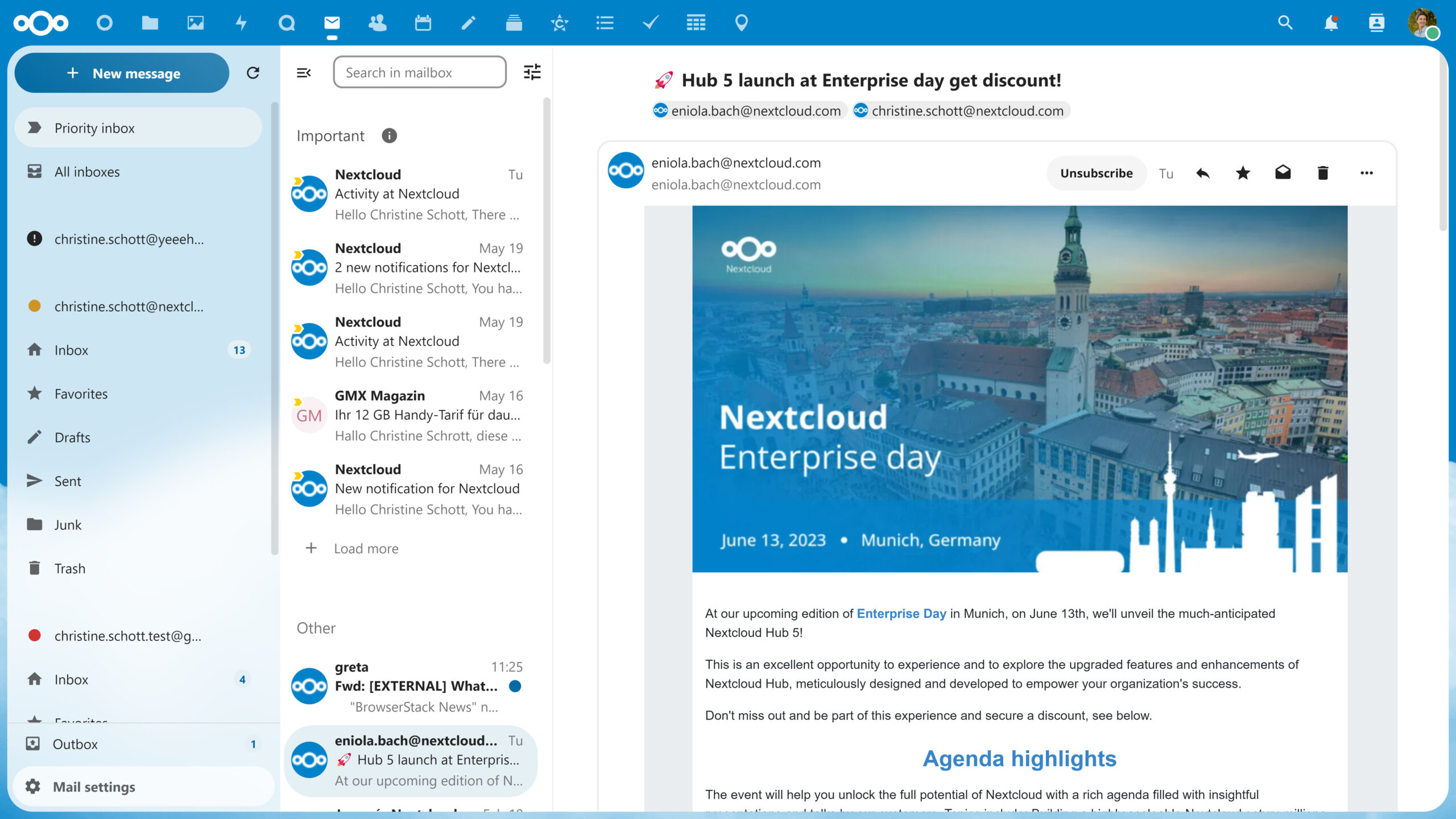
Nextcloud Mail uses Machine Learning (ML) to classify the importance of incoming emails based on your historical data and pattern recognition. This provides you a priority inbox, where your most important messages are at the top. Due to the ML technology, your data never leaves the server.
Luckily for you, this feature is already integrated by default. However, if you want to disable it at any time, you can do so in the bottom left settings of the Mail app.
- Local machine learning used in Nextcloud Mail 🟢
Image, audio and video recognition
Recognize app lets you recognize patterns in various content to help you with managing media. It adds fitting tags to your media collection, automatically categorizing your photos, videos and even music. For example,