Over the past few months, we’ve introduced several new Xbox features and devices that deliver more fun and meaningful gaming experiences for players. These updates were initially available for Xbox Insiders and starting in September, we’ll begin rolling these out to everyone.
First up, the ROG Xbox Ally, which we previously announced at Gamescom, is now available for pre-order. Then, there’s Gaming Copilot (Beta), your personal gaming sidekick is rolling out to our players on PC and mobile. We’re also revamping the Xbox PC app with a new My Library experience, where you’ll be able to install third-party apps in My apps and pull together all your games, even those from other PC storefronts, into one clean aggregated gaming library in My games. In addition, your game play history, including easier access to cloud-playable games, is now accessible across all your devices.
And because we’re all about making gaming smoother and fun, we have updates coming for social widgets, a new network quality indicator to help you track your cloud gaming performance, and a more intuitive rewards interface accessible across devices including handhelds.
Finally, in case you missed it, through our partnership with LG we are expanding the definition of what an Xbox is as you will soon be able to play games from the back seat of your car. Read about these and much more below.
Here’s What’s New
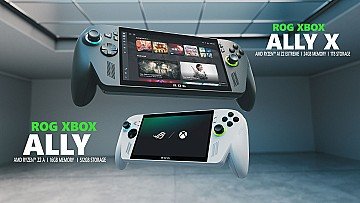
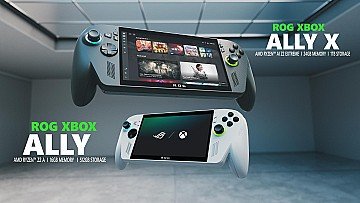
Get Ready to Play Anywhere – Pre-order ROG Xbox Ally X and ROG Xbox Ally Now
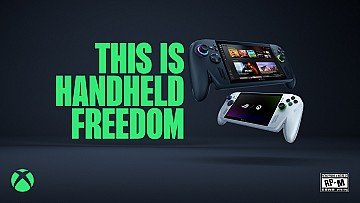
We’re excited to announce that players can now pre-order the ROG Xbox Ally X and ROG Xbox Ally, two powerful handhelds designed to take your game library with you wherever you go. These handhelds deliver an approachable, portable gaming experience, packed with several new and first-of-its kind features.
Launching globally on October 16, the Xbox Ally X and Xbox Ally offer two distinct options to match your personal playstyle. The Xbox Ally X is the ultimate high-performance handheld, built for the most demanding players. While the Xbox Ally is the essential handheld for everyone from the casual player to the avid enthusiast.
Pre-orders are available through the Microsoft Store, ASUS eShop, and local retailers. Once pre-orders go live in your region, head to https://www.xbox.com to find participating retailers and secure your device. Check out more details here.
Gaming Copilot – Rolling Out on PC and Coming Soon to Mobile
We’re thrilled to share that Gaming Copilot (Beta), your personal gaming sidekick, has officially started expanding to Game Bar on Windows PC and is coming next month to the Xbox mobile app. Gaming is one of the only forms of entertainment where you can get stuck, and Gaming Copilot is designed to help get you past those obstacles so you can get to the fun faster and spend more time playing the games you love.
Thanks to early feedback from Xbox Insiders and mobile players, we’ve introduced new capabilities like deeper in-game assistance, the ability to push-to-talk to easily invoke Copilot Voice, and smarter recognition of what’s happening on your screen. Whether you’re stuck on a boss fight or looking for your next favorite game, Gaming Copilot is ready to help with recommendations and insights when you want it.
To get started, make sure you have the Xbox PC app installed, press Windows + G, and launch Gaming Copilot from Game Bar. Learn more and get tips for getting started here.
Seamlessly Access Your Gaming Library, Apps, and Play History in One Place
Now all your apps and games are easier to find than ever under My Library. With My apps, you can now access your go-to third-party apps, such as browsers, storefronts, and gaming utilities, right from the Xbox PC app. No more digging around – everything’s in one place. Sort, scroll, and choose which apps you want to find and download on your home screen.
Additionally, bring everything together with an aggregated gaming library under My games. This collected gaming library pulls your games from Xbox, Game Pass, and your installed games from leading PC storefronts together. Now it’s easier to view and launch installed games from the most common gaming apps directly from My Library.
Available now on Windows 11 PCs and handhelds, My apps and My games are built to support the new collective gaming library. That means faster access, smoother launches, and less time clicking around.
Players can also now see all their cloud-playable games and game play history across devices. On console, check out the Play history tile on the Home page, and on the Xbox PC app, you can find your Play history tile in the Jump back in section of Home as well as the Play history tab in My Library.
To learn more, check out our previous announcement describing these features. [Back to top]
PC Gaming Updates
Game Bar – Social Widgets and Visual Updates
We’ve wrapped up visual updates for Social widgets, and the result is a cleaner, more cohesive look across both Compact Mode and Desktop Mode. But it’s not just about looks, we’ve also made controller navigation smoother and more intuitive. Whether you’re chatting or checking activity, it’s now easier to get around with a controller. All of this adds up to a more polished, more enjoyable in-game overlay experience and better usability.
Network Quality Indicator Update
We’ve added a handy new feature to the Xbox PC app: a Network Quality Indicator (NQI) tool. Designed to help players better understand their network conditions, NQI offers clear guidance to troubleshoot the most common in-stream network issues that might mess with your cloud gaming experience. Since most audio/video issues come down to connection problems, this should make it easier to figure out what’s going on.
You can turn the network warning icons on or off by heading to your profile pic > Settings > Cloud Gaming > Network Quality Indicator before you start streaming. If you want to change them while streaming, you can also enable this feature through Game Bar when playing a cloud game. Press Win+G, go to the Xbox Cloud Gaming widget, and then select Settings > Enable Network quality indicator. Get troubleshooting tips here.
Smarter Game Save Syncing Starts Today
We’re rolling out new features in the Xbox PC app to help players when game saves get left behind on another device, especially in offline scenarios. Now, when there’s a save that has not been synced from a previous session, on the next device you play on you’ll see a progress bar, device name, timestamp, and more details to help you understand what’s going on. We’ve also added insights into where the sync is coming from, how it’s progressing, and what to do if something gets stuck. You’ll now know when to wait, when to act, and how to get back to your well-earned progress more easily. [Back to top]
Rewards with Xbox
Revamped Rewards Hub – Level Up Your Rewards Experience on PC
The Rewards hub on PC is getting a major refresh, and it’s looking sharp. Whether you’re tracking progress, redeeming points, or just exploring new ways to play, the updated experience is built to be smoother and more intuitive across all screen sizes, including handhelds. The new design adapts beautifully to all screen sizes, so you can keep earning wherever you’re playing.
We’re also rolling out a new Goal Card to help you set and track your progress toward big rewards. And with the new Microsoft Rewards Level view, you’ll always know where you stand and what’s next.
Ready to explore the new Rewards hub? Open the Xbox PC app or Windows handheld and check out the updated experience. Just play games and claim your points. Then start setting goals, tracking progress, and redeem your points for real rewards.
- Open the Xbox app on your Windows PC or handheld.
- Go to your Profile at the top left and select My Rewards to open the hub.
- Play your favorite games and make sure to claim your points to add them to your balance.
- Set a goal on the Goal Card, check your level, and explore quests.
- Spend your points on Xbox Gift Cards, in-game items, sweepstakes, donations, and more!
Redeem Rewards on the Xbox Mobile App
You can now redeem Rewards points directly on the Xbox mobile app. That means you can grab gift cards and put them toward game purchases – all without leaving the app. Simple, fast, and right where you’re already playing.
Here’s how to do it:
- Open the Xbox app
- Tap your profile icon (top left)
- Head to Rewards and tap “Get rewarded”
- Tap Redeem on the item you want, confirm, and you’re done!
Simple, fast, and built for wherever you play.
Xbox Console Updates
Offer Wallet – Now Available on Web and Xbox Consoles
Providing a unified digital wallet solution for Xbox players to discover, redeem and manage promotional offers and credits, Offer Wallet is now available on both web and console platforms. Direct